Station dashboard
The dashboard is the separate station-dashboard application. It connects to the API of a local or remote station-daemon. In standalone mode it shows one process. In a Station Network it gives Headquarters one fleet-wide view of queued work, workers, schedules, beacons, broadcasts, and environment configuration.
New here? Follow the four-minute setup below, then use Overview → Signals → Run detail. Operating a fleet? Start with Stations, Schedules, Environment, and the v1 API panels shown at the bottom of each screen.
Quick start
pnpm add station-daemon station-adapter-sqlitepnpm add -D station-runtime-cli station-dashboard// station.config.tsimport { defineConfig } from "station-daemon";import { SqliteAdapter } from "station-adapter-sqlite";import { BroadcastSqliteAdapter } from "station-adapter-sqlite/broadcast";import { BeaconSqliteAdapter } from "station-adapter-sqlite/beacon";import { ScheduleSqliteAdapter } from "station-adapter-sqlite/schedules";import { EnvSqliteAdapter } from "station-adapter-sqlite/env"; const dbPath = "./station.db"; export default defineConfig({ port: 4400, signalsDir: "./signals", broadcastsDir: "./broadcasts", beaconsDir: "./beacons", adapter: new SqliteAdapter({ dbPath }), broadcastAdapter: new BroadcastSqliteAdapter({ dbPath }), beaconAdapter: new BeaconSqliteAdapter({ dbPath }), scheduleAdapter: new ScheduleSqliteAdapter({ dbPath }), envStorage: new EnvSqliteAdapter({ dbPath }), auth: { username: "admin", password: process.env.STATION_PASSWORD! },});STATION_PASSWORD=change-me pnpm exec stationdIn another terminal, start the dashboard with the daemon URL. Openhttp://127.0.0.1:4401. The daemon stays on port 4400; dashboard shutdown does not stop its runners.
STATION_DAEMON_URL=http://127.0.0.1:4400 PORT=4401 STATION_DASHBOARD_HOST=127.0.0.1 pnpm exec station-dashboardFor a remote daemon, set STATION_DAEMON_URL to its trusted HTTPS address. The dashboard server forwards requests to that configured daemon; keep worker services private behind Headquarters. Use PORT and STATION_DASHBOARD_HOST for the dashboard listener.
Authentication is optional for localhost, but do not expose an unauthenticated dashboard. In production, use environment-backed credentials, TLS, and scoped API keys for automation.
A map of the dashboard
| Screen | Use it for |
|---|---|
| Overview | Fleet-wide status totals, recent failures, and live lifecycle events. |
| Signals | Discover definitions, validate input, trigger work, and inspect run history. |
| Broadcasts | Trigger and observe multi-signal DAG workflows. |
| Beacons | Supervise long-running processes and their runtime instances. |
| Schedules | Create, pause, preview, and inspect interval or timezone-aware cron schedules. |
| Stations | See network membership, capacity, definitions, heartbeats, and drain state. |
| Environment | Manage global or target-scoped runtime variables and redacted secrets. |
| Expressions | Parse and test broadcast expressions before saving a workflow. |
| Settings | Create scoped API keys and inspect server configuration. |
Overview and live activity
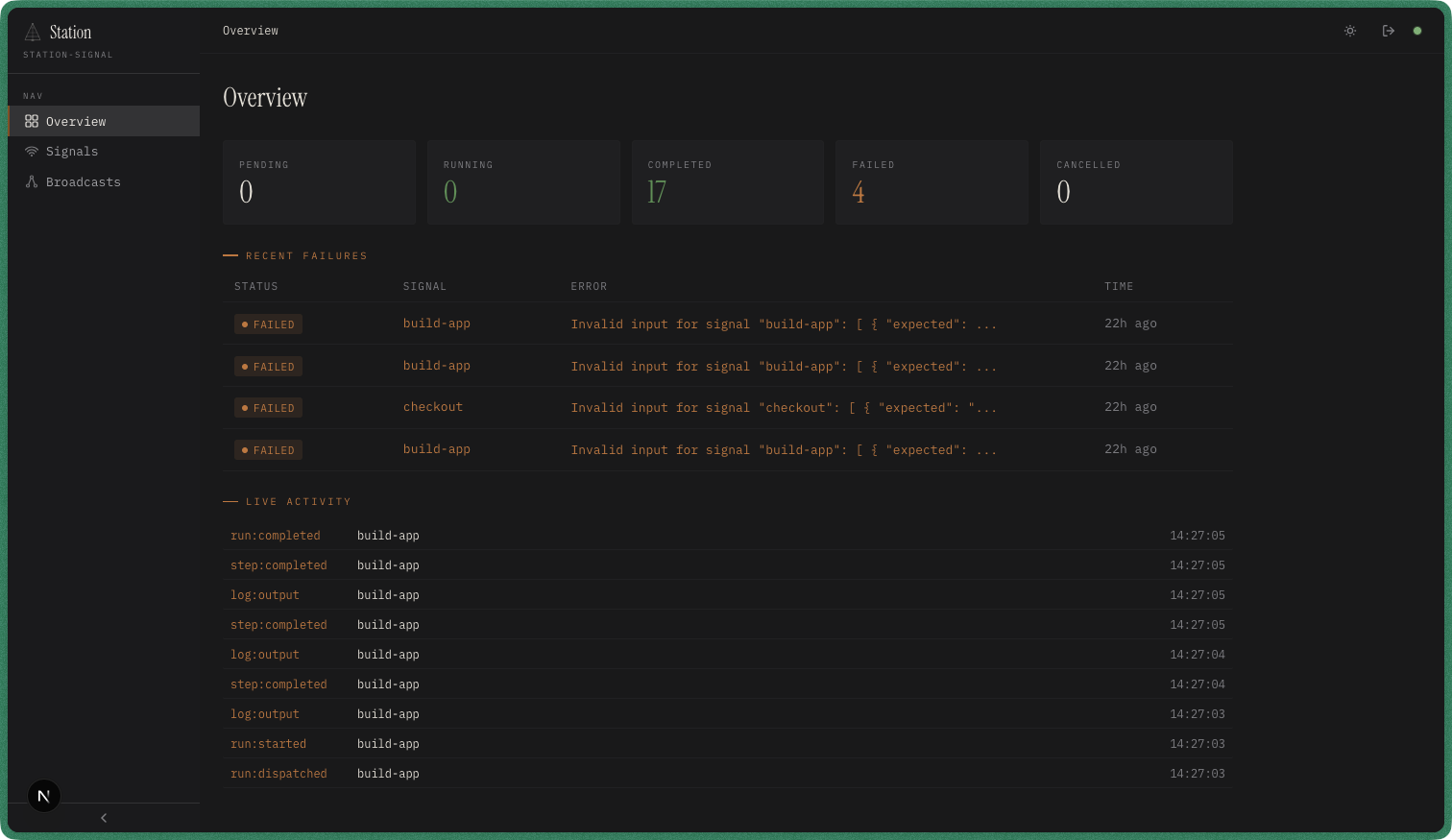
Status cards and failure rows come from durable adapters. Live Activity arrives over the dashboard connection, so the green header dot confirms that new events can arrive without a refresh. Click a failed run to see its validated input, output, attempts, steps, and captured logs.
Signals and broadcasts
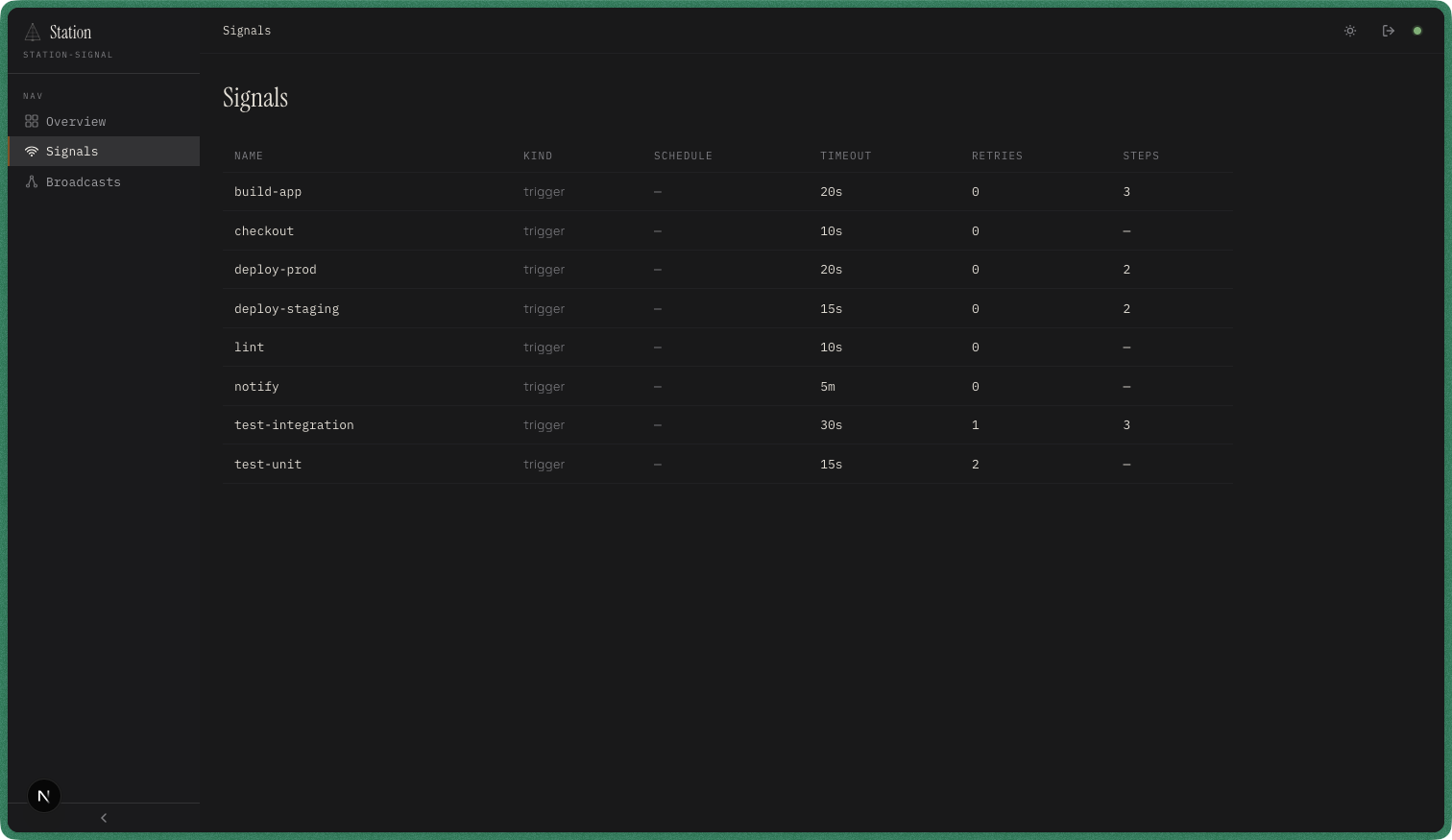
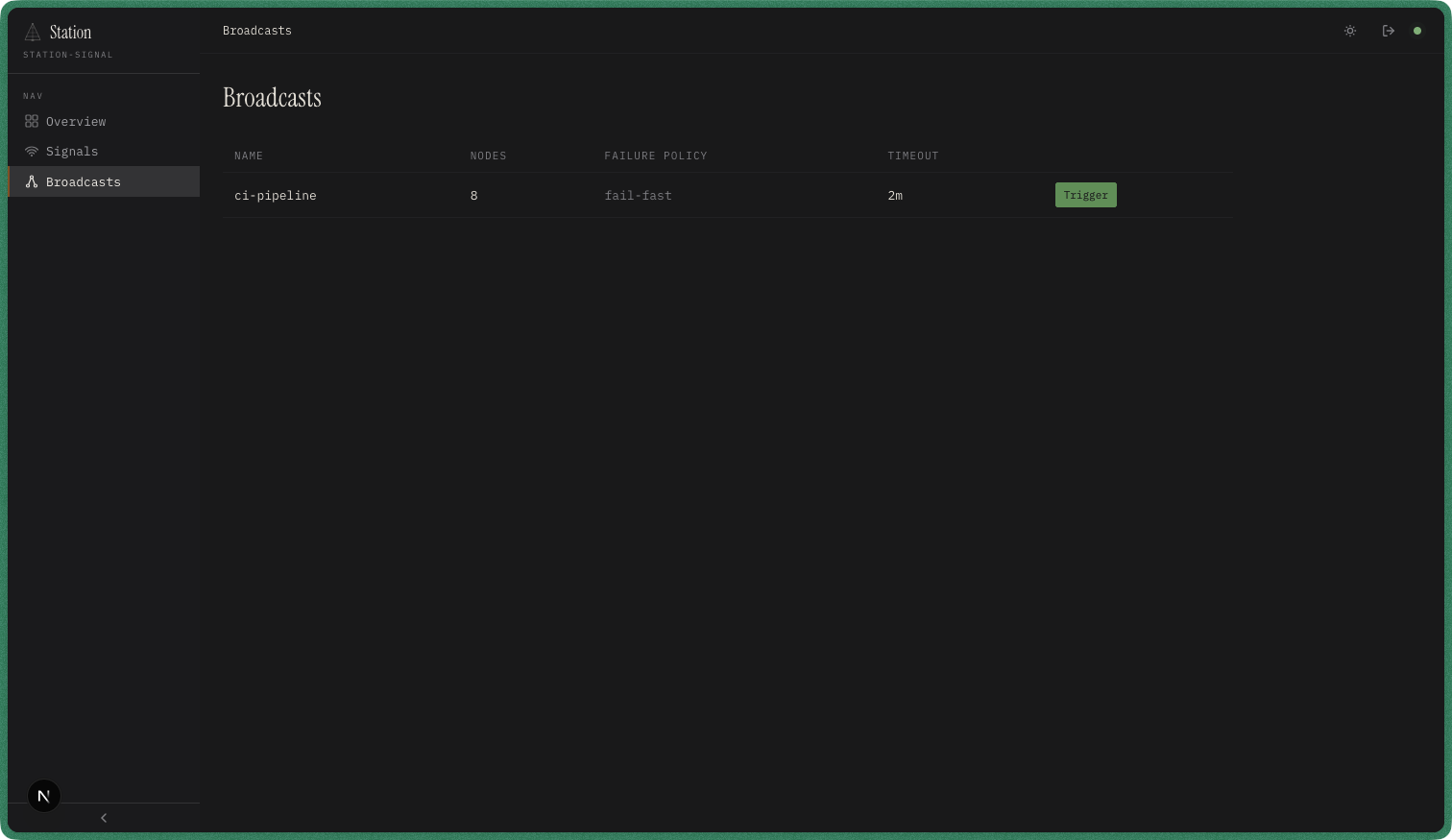
A signal page is the quickest way to test a definition: Station renders its Zod schema as a form, also offers raw JSON, and records the resulting run. The configuration panel distinguishes station-local and fleet-wide concurrency and shows placement labels. Broadcast pages render the DAG, then color nodes as their underlying signal runs change state.
Schedules
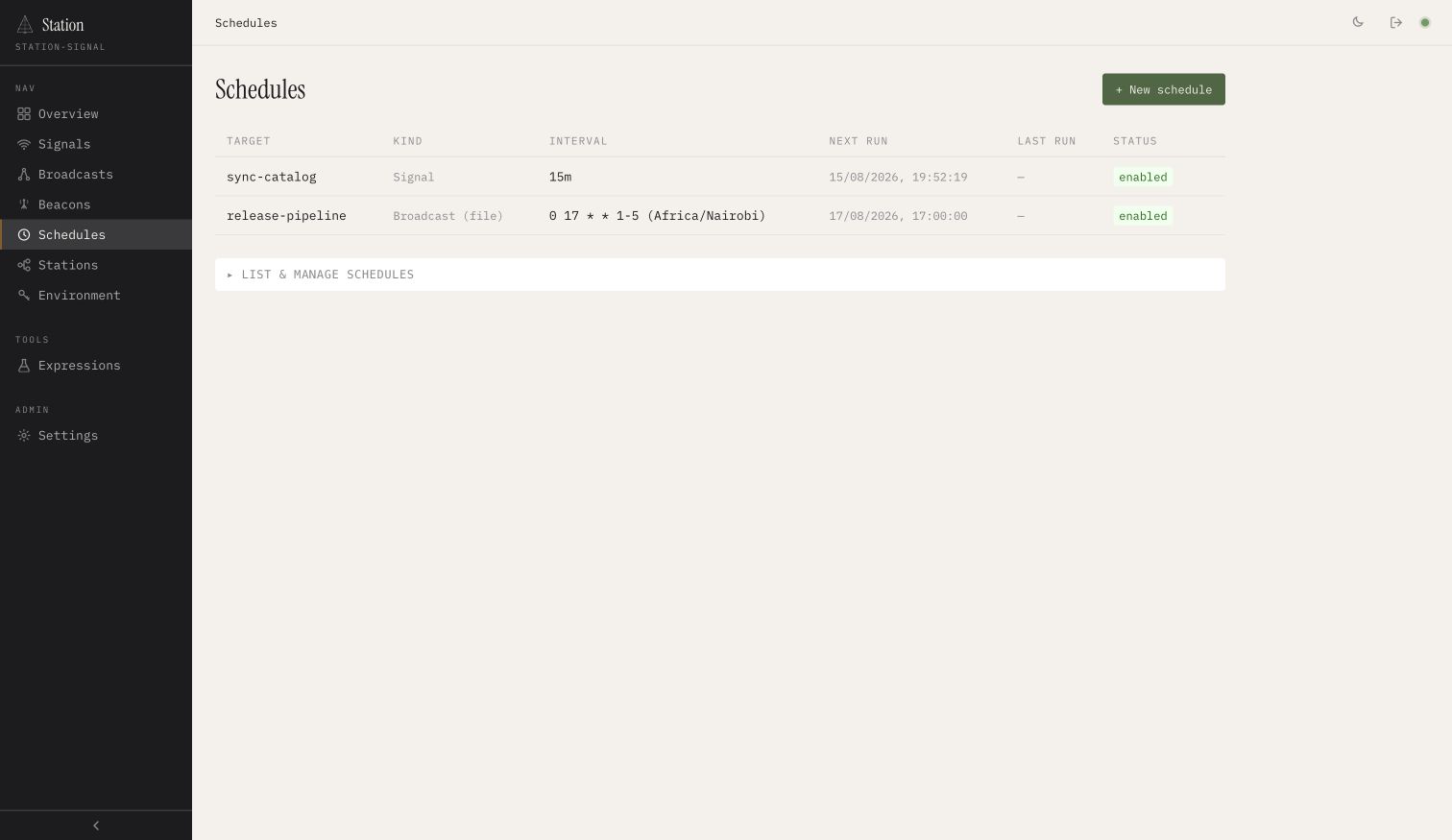
Schedules can target a signal or broadcast. Use an interval for elapsed cadence, or five-field cron plus an IANA timezone for wall-clock time. Preview before saving. In a network, durable occurrence claims make one Headquarters instance enqueue each occurrence once. The displayed time is when work becomes eligible; queue pressure can delay handler start.
Station Network
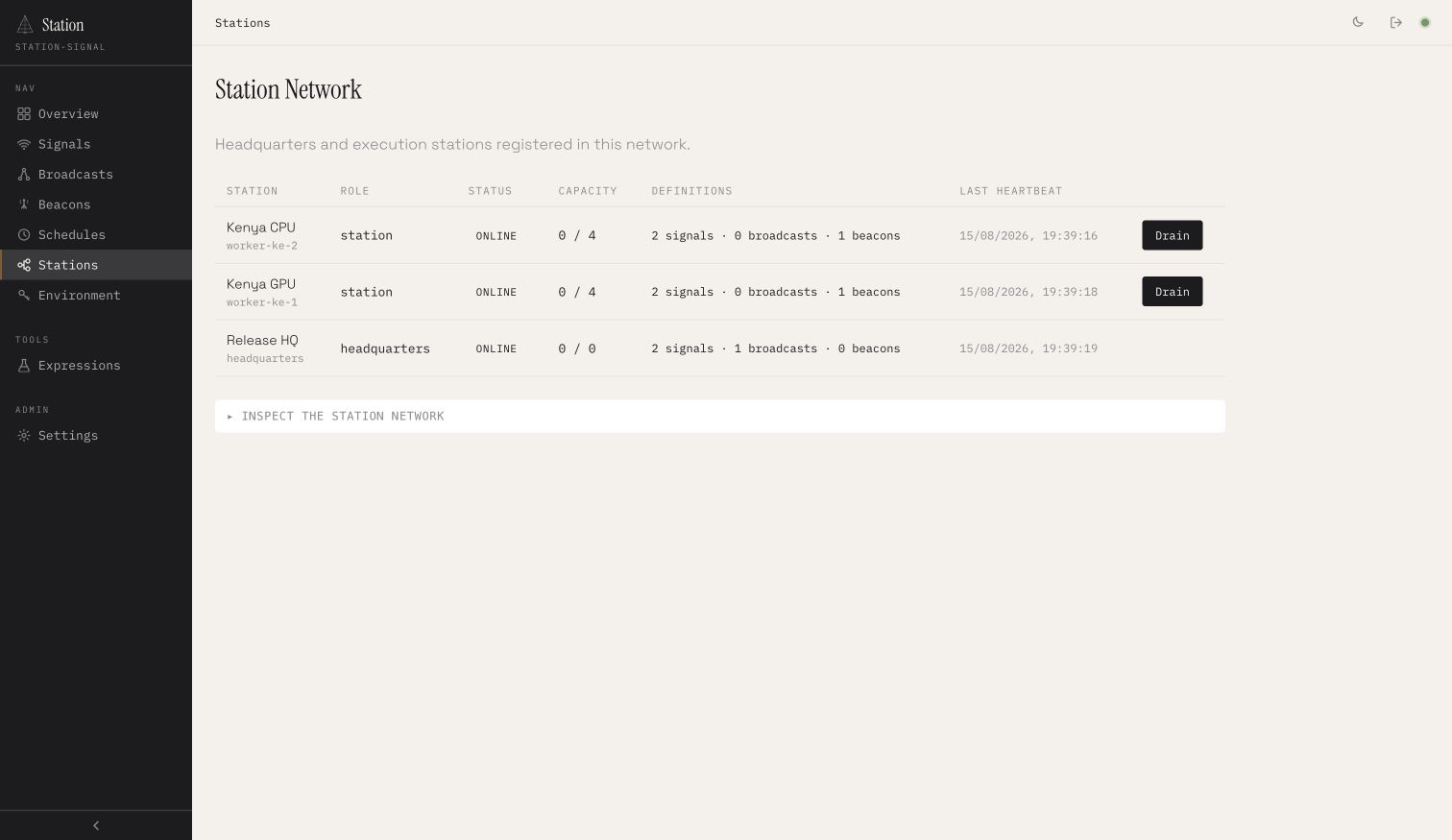
Every row shows the stable station identity, role, lease-backed status, active/max capacity, advertised definitions, and last heartbeat. Drain a worker before deployment: current runs may finish, while new claims stop. An offline row means its lease expired, not merely that a browser lost its dashboard connection.
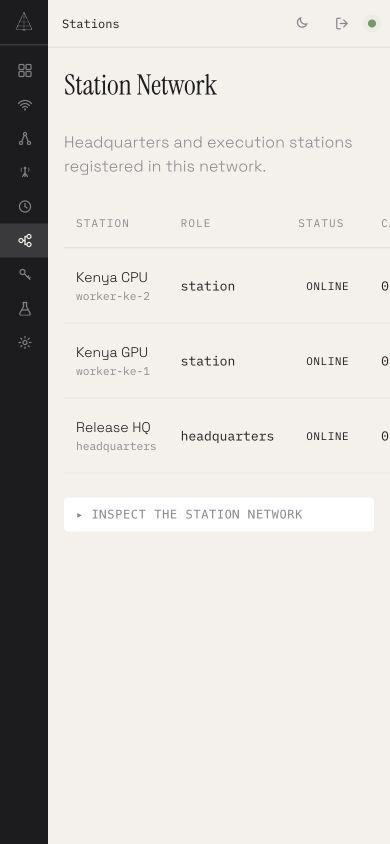
On a phone, navigation collapses to its icons and wide operational tables scroll horizontally.
Beacons
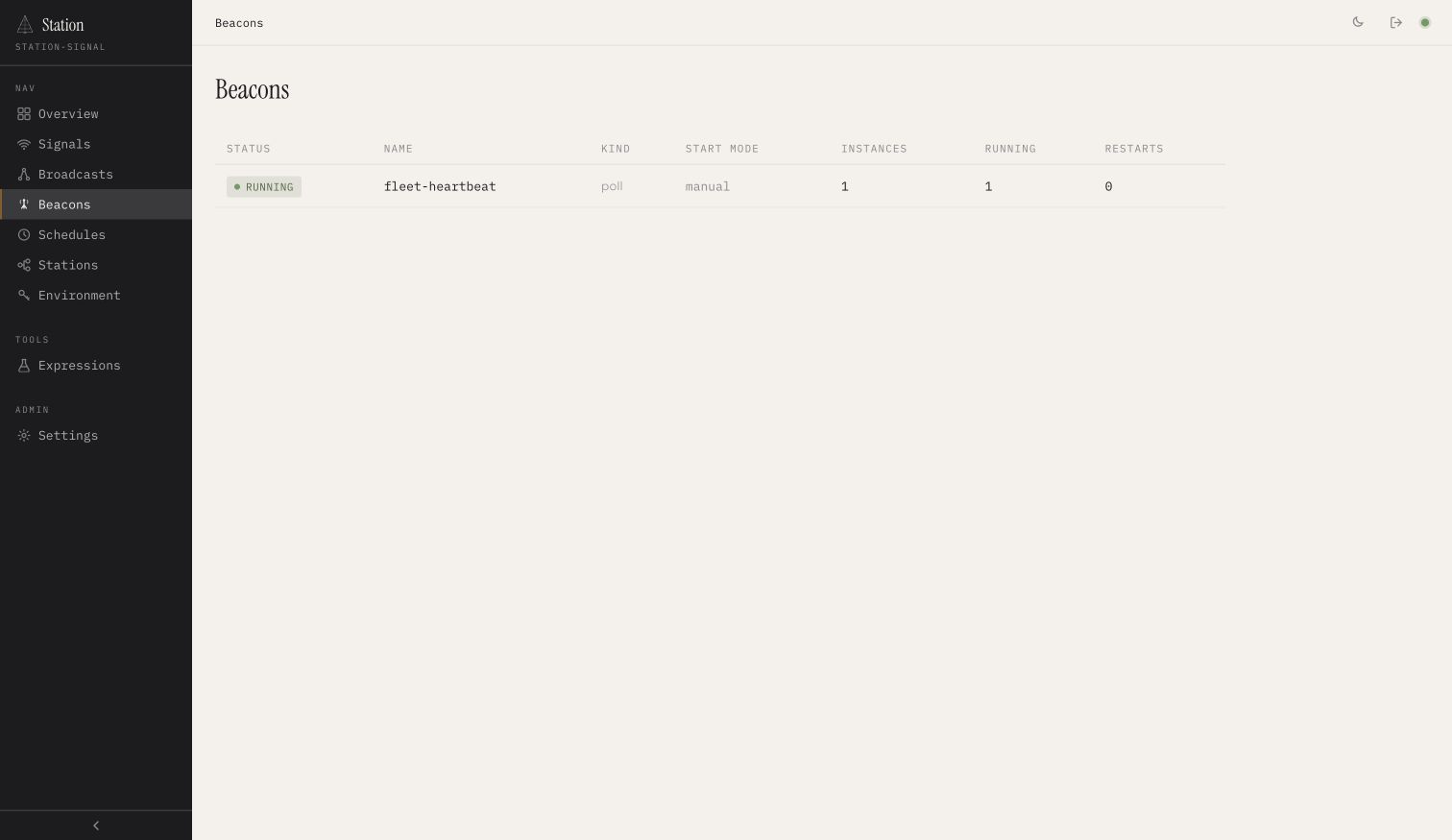
Beacons are supervised long-running services or pollers. Headquarters receives their definition metadata from workers, while shared state tracks which station owns each instance. Start mode controls whether an instance is seeded automatically, seeded stopped, or created only by an API request. Restart counts and events help distinguish clean exits from crash loops or heartbeat stalls.
Environment and secrets
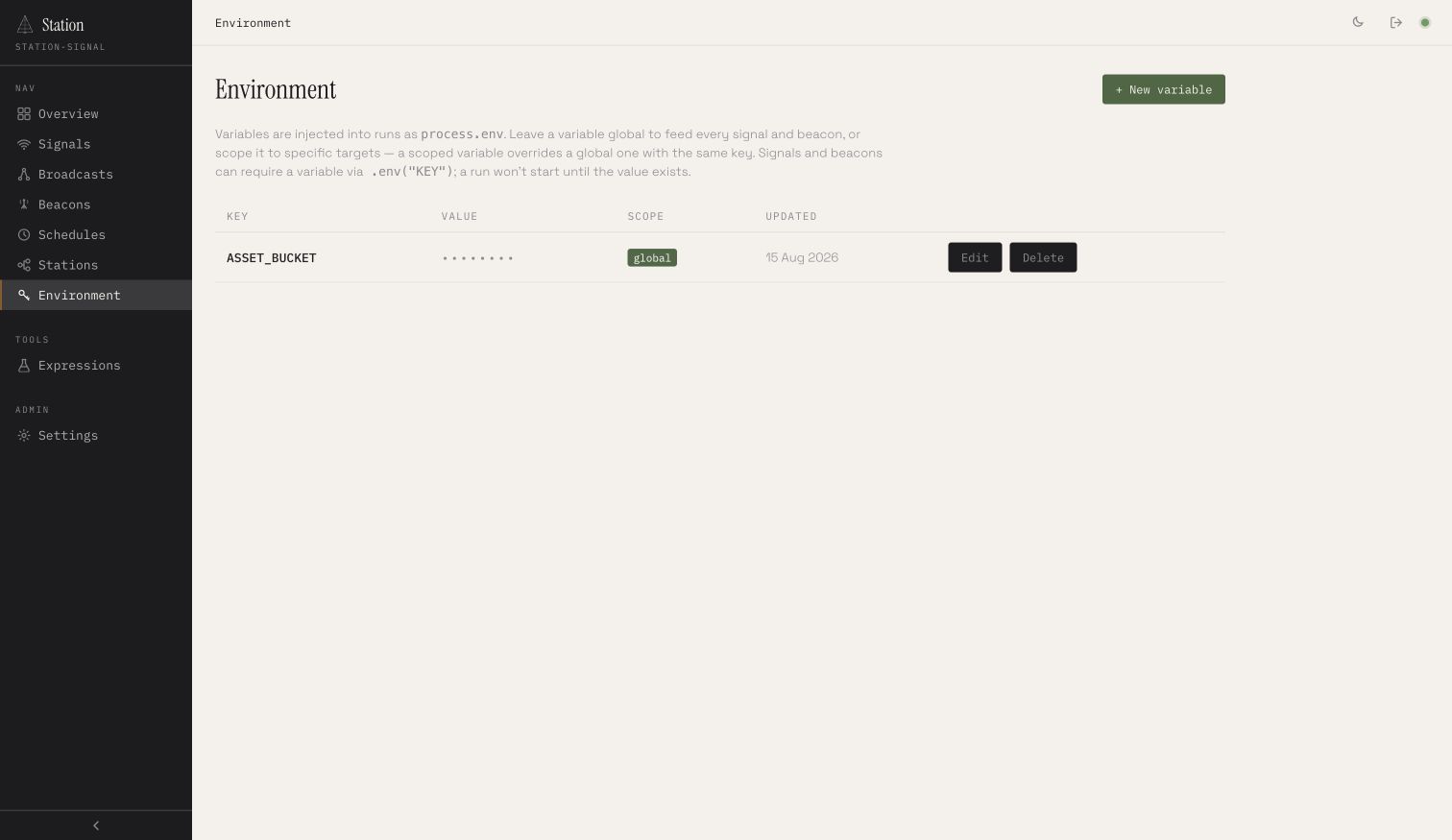
Variables can be global or scoped to named signals and beacons. Secrets are write-only in the API and stay redacted in the UI. A definition that declares .env("ASSET_BUCKET") will not start until a matching value exists; a scoped value overrides a global value with the same key.
Configuration reference
| Option | What it controls |
|---|---|
port / host | Single public UI and API listener. Defaults to 4400 / localhost. |
role | standalone, headquarters, or execution station. |
network | Fleet ID, stable station ID/name, durable membership adapter, labels, endpoint, heartbeat, and lease timing. |
signalsDir, broadcastsDir, beaconsDir | Definition discovery roots. |
adapter and specialized adapters | Durable signal, broadcast, beacon, schedule, environment, key, and log state. |
runner.maxConcurrent | Total signal processes allowed on this Station. Signal declarations can apply narrower local/fleet caps. |
runRunners | Whether this process executes work; defaults to false for Headquarters and true otherwise. |
auth | Dashboard credentials, session lifetime, and optional API-key storage. |
Operator checklist
- Use the same durable adapters on every process participating in one fleet.
- Give every process a unique, stable
network.stationId. - Restrict dashboard credentials and give automation only the API scopes it needs.
- Alert on repeated failures, offline workers, stale heartbeats, and beacon restart loops.
- Drain workers before deployments and verify active capacity reaches zero.
- Back up adapter state and test expired-lease recovery before production rollout.
Next: design a Station Network, run the local three-process example, or use the complete Station Daemon API reference.